· 8 min read
How to get started with digital scrapbooking
Layering paper, photos and embellishments, but on a screen. Here's what you need and how to make your first digital page.
Digital scrapbooking is sticking things down without glue. You layer paper, photos and embellishments, only it all happens on a screen. You don't need much: a device, a program that works with layers, a few digital papers and your own photos.
What digital scrapbooking is
A digital page is made of layers, just like a paper page. At the bottom is a background paper, then your photos on top, then embellishments, text and a title. You can move, rotate, resize or delete each layer on its own.
The biggest difference from paper is that nothing is final. A wrong cut is undone with one click. You don't have to decide in advance how big your photos will be, and a lovely paper never runs out. Neither does a letter from your favourite alphabet.
On the other hand, you don't hold the paper in your hands. There's no smell of card and no pile of scraps on the table. You also have to get to know a program, and those first few weeks can feel a bit clunky. If you miss the feel of it, you can always combine digital and paper later.
Kits, papers and elements
You build a digital page from ready-made parts. These are usually sold or given away as a kit: a set built around a theme or season, with colours that go together.
A kit usually contains:
- Papers. Backgrounds as JPG files, usually 30.5 x 30.5 cm (12 x 12 inches) at 300 pixels per inch. That works out at 3600 x 3600 pixels.
- Elements. The digital version of embellishments, the decorations you put on a page: little flowers, labels, ribbons, buttons or paperclips. These are PNG files with a transparent background, so only the object itself shows.
- Alphabets. Individual letters as images, which you place on the page just like elements. That's different from a font, which you install on your computer and simply type with.
- Journal cards and word art. Cards to write on, and short phrases or words as images.
There are also templates and quick pages. A template is a page layout with spaces for photos, paper and text, usually as a layered file (PSD, TIFF or PNG). You fill those spaces with your own photos and a kit of your choice. A quick page is a finished page with gaps where you just put your photos behind. It takes a few minutes, but because it's one flat image, you can't change much about it.
Lots of designers give away free kits and templates. It's a great way to find out which style suits you before you buy anything. Do read the terms of use, though. Often you may only use a kit for your own pages, the designer asks you to credit her name, and you may never pass on the files themselves. If someone wants the same kit, point her to where you found it.
Phone, tablet or computer
A computer gives you the most room and control, especially if you work with templates that have lots of layers. There are free and paid programs that use layers. GIMP and Photopea, which simply runs in your browser, have a free version. Paid programs such as Photoshop Elements, a popular beginner's program, and Photoshop offer more options, but you don't need them to get started. Check what the licence includes when you buy.
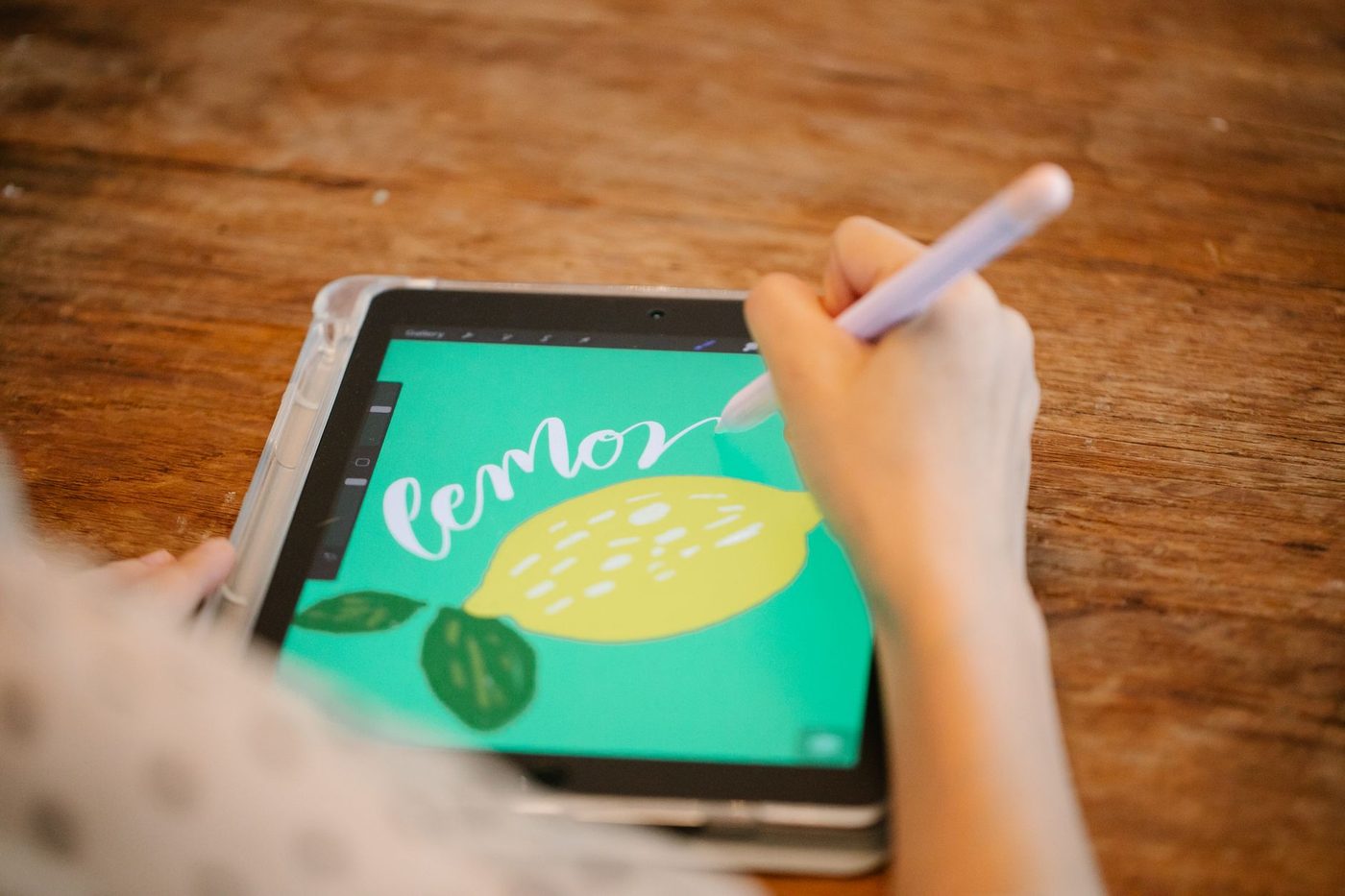
A tablet works surprisingly well, especially with a stylus. Canva runs in the browser and as an app, and has templates you can drag your photos into. A phone works too, but the small screen makes precise work tricky. For a quick page or a simple layout, that's no problem.
Choose your program first, then look for tutorials. Every program has its own menus and shortcuts. A few short videos on the basics, watched a couple of times if you like, will save you a lot of searching.
Is digital cheaper and quicker?
Often, yes, with a few caveats. You don't buy glue, paper that runs out or letter stickers where the same letters are always used up. You can use a kit endlessly, and with free programs and free kits you can start without spending a thing. But as soon as you want to print, you pay for ink, photo paper, a printing service or a photo book. And a digital stash grows faster than you think, too.
It's definitely quicker once you know the program. You no longer dig through piles of paper, and a mistake is fixed straight away. Your first pages will take time, though. Expect to move things around, throw things out and start again. That's part of it, and it gets easier every time.
Your first page, step by step
Start small: one to three photos and one template.
- Put your photos in one folder. Scan printed photos at 300 dpi so they'll print well later.
- If you want to write more than a few sentences, type your text first. That way you know how much space you need.
- Choose a template with the number of photos you have, and count your text as an extra photo.
- Open the template. If you'd rather start from scratch, create a new document of 30.5 x 30.5 cm at 300 pixels per inch. If you want to print at home, 20 x 20 cm (8 x 8 inches) is more practical.
- Place your background paper as the bottom layer.
- Put a photo directly above a photo space and turn it into a clipping mask. The photo then sits exactly inside the shape of the space, and you can still move it around within it.
- If a photo is too big or too small, scale it from a corner so the proportions stay the same. In many programs you hold down Shift to do this, but in newer versions of Photoshop, among others, the proportions stay the same automatically and Shift actually unlocks them. If your photo stretches out of shape, try the opposite.
- Add elements, your text and a title. A handy order from bottom to top is paper, photos, frames, elements, text and title.
Save often as you go, because a program can crash.
Shadows that look real
Without shadows, a digital page looks flat, as if everything has been painted onto the screen. With a small drop shadow under each layer, it looks as if real paper is lying on paper.
The default settings are usually far too heavy. Keep the shadow close to the object. At 300 pixels per inch, about 2 pixels of distance works for a sheet of paper or a photo, and 5 to 7 pixels for things that sit higher, such as a flower or a piece of chipboard (thick card). Make all the shadows fall the same way, as if the light comes from one window. A slightly lower opacity makes the shadow softer and more natural.
If you find it hard to get right yourself, you can find ready-made shadow styles. You apply them to a layer with one click.
Little tricks and common mistakes
- Don't delete a layer, hide it. The eye icon in the layers panel is enough, and you can bring it back later.
- Link layers that belong together, such as a photo and its frame. Then you move them in one go.
- Drag elements straight into the layers panel, to the spot where they need to go. It saves a lot of shuffling back and forth.
- If you edit a photo, save it under a new name. That way you never overwrite the original.
- A template isn't a rule. Move, rotate and delete spaces, or borrow one from another template.
- Photos from social media are heavily compressed. Printing them small usually works, large doesn't. And always ask whether you may use the photo.
- Piling on too many elements because they cost nothing anyway is a classic. Less works just as well here as it does on paper.
What to do with a finished page
Save every page in two versions. The first is the working file with all its layers, so you can still change things later. The second is a flat JPG of 3600 x 3600 pixels at the highest quality, for printing or sharing. Keep all your pages in one set folder.
With that JPG you have several options:
- Print single pages and slip them into an ordinary album, perhaps between your paper pages. Because they're flat, more of them fit.
- Have a photo book made. It's slim and easy to store, but finish the whole book first, because fixing a mistake means a new print run.
- Share the page digitally with family or let it rotate in a digital photo frame.
- Print it and decorate it further with real buttons, ribbon or washi tape. That's hybrid scrapping.
You can't get it wrong. Start with one page, with photos that are dear to you, and accept that the first one will still feel a bit rough. By the third, you'll know your way around.
Questions about this topic
What do you need for digital scrapbooking?
A device, a program that works with layers, a few digital papers and your own photos. A computer gives you the most room, but a tablet or phone will also get you a long way.
What is a digital scrapbook kit?
A set of digital papers and elements around a theme or season, with colours that go together. It usually includes papers as JPGs, elements as PNGs with a transparent background, alphabets and journal cards.
What size should a digital scrapbook page be?
Usually 30.5 x 30.5 cm at 300 pixels per inch, so 3600 x 3600 pixels. If you want to print at home, 20 x 20 cm is more practical.
How do you make realistic shadows in digital scrapbooking?
Give each layer a small drop shadow that stays close to the object, and make all the shadows fall the same way. The default settings are usually too heavy; a lower opacity makes the shadow softer.