· 9 min read
Which software to choose for digital scrapbooking
Photoshop Elements, Affinity, GIMP, PaintShop Pro or Canva: what they can do, what to look for in the licence and what happens to your kits when you switch.
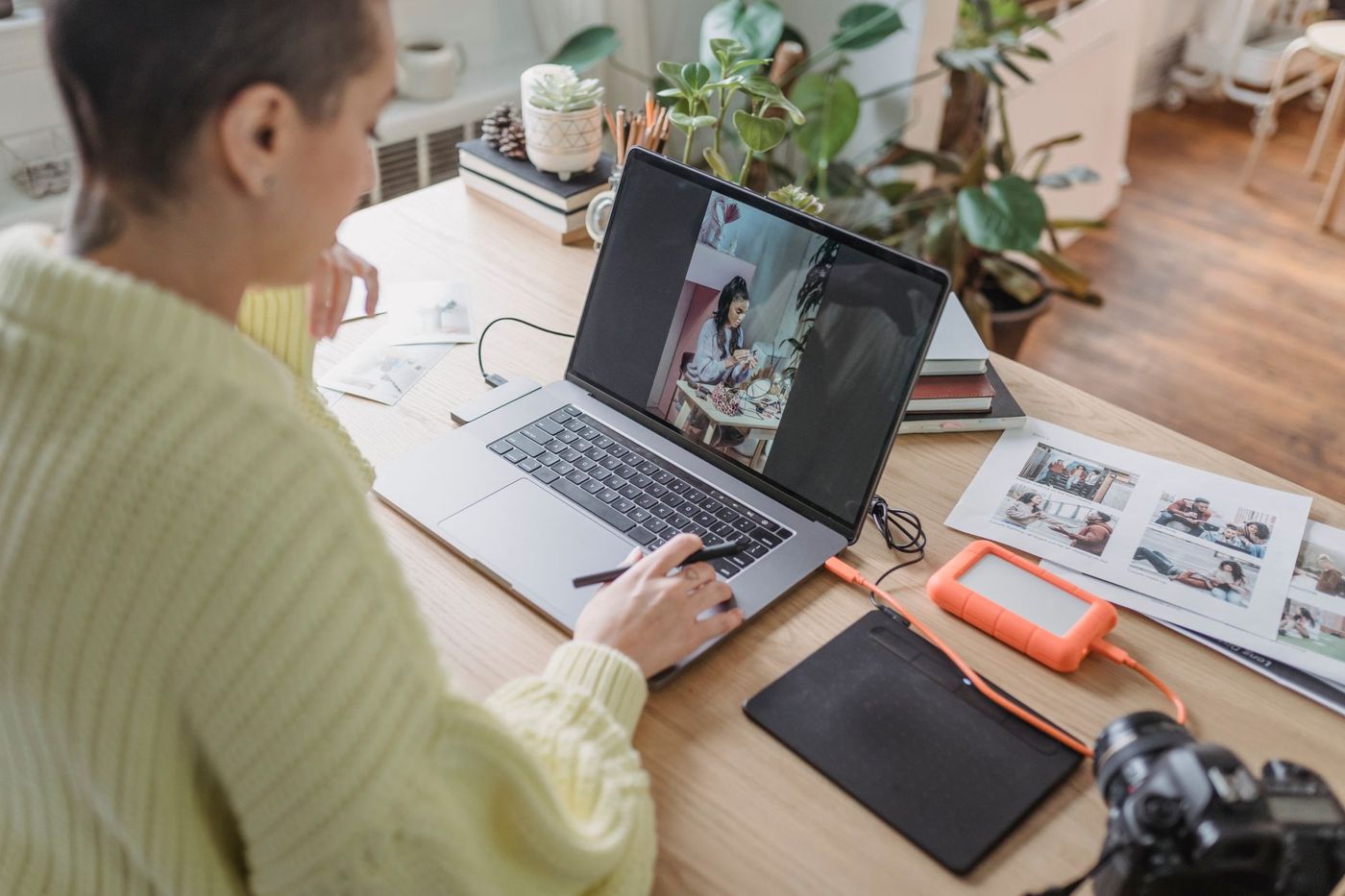
With paper, you choose an album and a glue. With digital scrapbooking, you choose a program. That's where the doubts start. What do other scrappers use, what does it cost, and will you still be able to use the kits you've bought if you switch later? Below, the best-known options are set side by side, with what experienced digital scrappers say about them. Prices, versions and licences change often, so we don't give any amounts: always check the program's website for what applies now.
What a program needs to do, at the very least
At its heart, digital scrapbooking is stacking layers: a background paper, photos, frames, embellishments, text and a title. A suitable program can at least do the following:
- work with layers that you can move, scale and rotate separately
- keep transparency, so a PNG flower sits on your paper without a white edge
- cut a photo or paper into a shape with a clipping mask (in Dutch menus often called uitknipmasker)
- add drop shadows, because they turn flat images into something that looks like real paper
- place text in your own fonts
- set a custom size, usually 30.5 x 30.5 cm (12 x 12 inches) at 300 dpi, which is 3600 x 3600 pixels
- save at full quality as JPG or PDF, so your page prints sharply
Nice to have but not essential are guides that elements snap to, and the ability to open layered PSD files. That last one becomes important as soon as you want to work with templates.
A big screen helps more than you'd think. On a laptop or computer you can see your whole page and the layers panel at once. On a phone you spend most of your time zooming in and out.
Photoshop Elements
Elements is the simpler, cheaper sibling of Photoshop, and for years it was the program most digital scrappers started with. The big advantage: almost every tutorial, template and set of shadow styles was made or tested with it. If you get stuck, someone has usually already answered your question.
Not everyone finds it intuitive. Some scrappers have used it for years and still don't feel at home in it. Keep an eye on the licence too: for a long time Elements was a one-off purchase, but the type of licence can vary between versions, for example with a limited period of use. Check the terms before you buy.
Older versions also don't always run on new operating systems.
The full Photoshop is the standard among designers and can do everything, but it works with a monthly subscription. If you only scrap, you end up paying for lots of features you'll never use.
Affinity
Affinity is a range of programs for photo editing, illustration and layout that were sold as a one-off purchase for a long time. The way you pay and how the programs are organised can change: when you buy, check what's free at that moment, what needs a subscription and which devices there's a version for. Affinity has become popular with scrappers who wanted to move away from Photoshop or PaintShop Pro.
Affinity opens PSD and TIFF templates and can import brushes from Photoshop. If you mostly build pages and do little photo editing, you'll often find the design and layout tools nicer to use than the photo editing.
Expect a period of getting used to it. There are plenty of videos about Affinity, but still few that are specifically about scrapbooking. Older tutorials sometimes refer to menus that have moved in newer versions. And don't panic if all your panels suddenly disappear: that usually happens when you press Tab, and pressing Tab again brings them back.
GIMP
GIMP is free and open source, and runs on Windows, Mac and Linux. It can do everything a scrapper needs, including opening PSD templates. It does take some getting used to, especially if you're coming from Photoshop or Elements, because the menus and way of working are different.
You can't simply use designers' ready-made shadow styles in GIMP. That's why scrappers who work with GIMP create their own standard shadow settings, for example for paper, for embellishments and for tape.
A handy trick that people switching over often look for: if you want a second template or file in your page, choose File > Open as Layers, or drag the file straight into the layers panel. All the layers then come in at once.
PaintShop Pro
PaintShop Pro has traditionally run on Windows only. When you buy, check whether that's still the case and what type of licence currently applies. It has a loyal group of scrappers, with their own courses and detailed tutorials. Instead of styles you work with presets that you save yourself, and brushes have their own file format.
Some users have doubts about the program's future, and some PaintShop Pro scrappers are switching to Affinity. If you enjoy working with it now, you don't need to change. But store your materials in a way that lets you switch later; more on that further down.
Programs made especially for scrapbooking
There are also programs made purely for scrapbooking, with built-in album features and often their own shop with kits. They're easy to find your way around for beginners. The risk is that some rarely get updates, so users worry that one day they'll stop working on a new computer. So check that you can save your pages as ordinary full-size JPG files.
Canva and apps on your phone
Canva works in the browser and as an app, and has a free version alongside paid subscriptions. You choose a template, replace the photos with your own and adjust the colours and text. Some of the templates and elements are only for paying users. You can add your own JPG papers and PNG embellishments, usually set a custom page size and download the result as a PDF or image. Test beforehand whether the size and quality are good enough for your print. You can also work on one album together with family through a shared link.
Is that enough for an album? For calm, simple pages, definitely. It gets trickier with layered PSD templates, fine shadow work and pages with lots of layers on top of each other. Your work is also stored in the cloud, so download your finished pages yourself as well.
Some scrappers make their entire album on their phone and love that they can do it anywhere, on the train or on the sofa. The limits are the small screen, the frequent lack of PSD support and less control over resolution. If you want to have your pages printed, check whether an app can save at a high enough resolution. If you have a tablet, see whether there's a more fully featured program for that device.
Free, one-off payment or subscription
Roughly speaking, there are three ways to pay:
- Free: GIMP and the basic version of Canva, and sometimes certain versions of other programs. Free doesn't always come without conditions, because some programs keep features behind a subscription.
- One-off: most scrapbooking programs and some versions of other programs. For Elements and PaintShop Pro, check what the licence involves at that moment.
- Subscription: Photoshop and the paid versions of, for example, Canva.
Paying once feels straightforward, but that program ages too. After a few years and a new computer, it may simply not start any more. A subscription keeps your program up to date, but you keep paying.
Most paid programs have a free trial. Use it with a real kit and a real page you'd love to make, not just a bit of trying things out. That way you'll soon notice whether a program suits you.
Do templates and kits work in every program
The good news: most kits are made up of ordinary files. Papers are usually JPG; embellishments, alphas and doodles are PNG with a transparent background. They work in any program with layers, including Canva.
Templates are a different story. They often come as layered PSD or TIFF files. Photoshop, Elements, Affinity, GIMP and PaintShop Pro can open them; Canva and many phone apps can't, or only partly. That's why some designers also supply their templates as separate PNG layers. You can stack those on your page from bottom to top in any program.
Shadow styles and actions are usually made for Photoshop and Elements. In other programs they don't work or work differently, so set up your own shadows there. Whichever program you use, read the terms of use for every kit, because they differ per designer and sometimes even per kit.
Switching to another program
Switching is perfectly doable, as long as you prepare a little.
- Keep the original ZIP files of all your kits, brushes and styles. Then you can load them again in a new program, instead of having to dig them out of your old one.
- Also save every finished page as a full-size JPG. Working files in a program's own format, such as .xcf, .afphoto or .pspimage, don't open everywhere. If you want to keep your layers, save a PSD or TIFF version too.
- Brushes in a program's own format can often be converted. From PaintShop Pro, for example, you stamp each brush once in black on a transparent canvas, save that as a PNG and turn it into a new brush in Affinity. It's work, but you only have to do it once.
- Learn the new program using techniques you already know. Search specifically for how to do a particular action in your new program, and you'll soon be back where you were.
- Use it every day for a while, even if only briefly. Preferably don't start during a busy period or in the middle of a challenge with a deadline.
- Keep your old program alongside the new one for a while. One scrapper, for example, kept her old Elements just for scanning.
If your computer or operating system is about to move to something new, first test whether your program works on it. That saves you an evening of panic.
Still unsure? Then choose based on how you work. If you want lots of tutorials and templates, you'll end up with Elements or Affinity. If you don't want to spend anything and don't mind a period of getting used to it, GIMP is a good choice. If you'd rather quickly make a few calm pages, Canva is enough to get started.
Questions about this topic
What is the best software for digital scrapbooking?
That depends on how you work. If you want lots of tutorials and templates, you'll end up with Photoshop Elements or Affinity; if you don't want to spend anything, GIMP is a good choice; and for calm pages, Canva is enough.
What does a program need for digital scrapbooking?
It needs to work with layers and transparency, make clipping masks and drop shadows, and let you set a custom size, usually 30.5 x 30.5 cm at 300 dpi. Saving at full quality as JPG or PDF is needed for a sharp print.
Do scrapbook kits and templates work in every program?
Papers (JPG) and embellishments (PNG with a transparent background) work in any program with layers. Layered PSD templates and shadow styles don't work everywhere, for example not well in Canva and many phone apps.
How do I switch to a different digital scrapbooking program?
Keep the original ZIP files of your kits and also save every finished page as a full-size JPG. Keep your old program alongside the new one for a while and learn the new program using techniques you already know.