· 8 min read
Hybrid scrapbooking: print digitally, finish on paper
Your printer as an extra stack of paper: this is how you combine digital papers, labels and letters with glue, scissors and real embellishments.
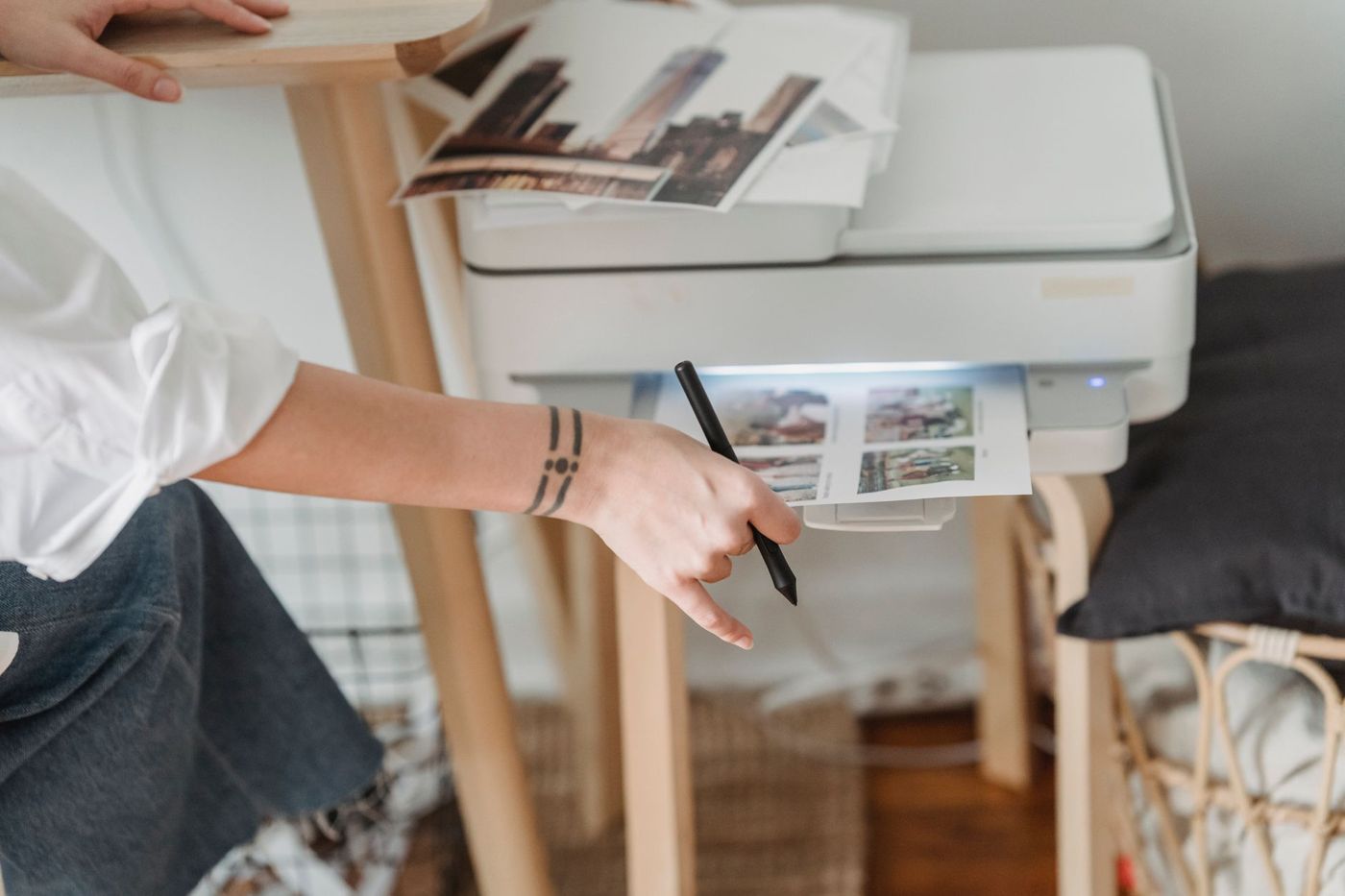
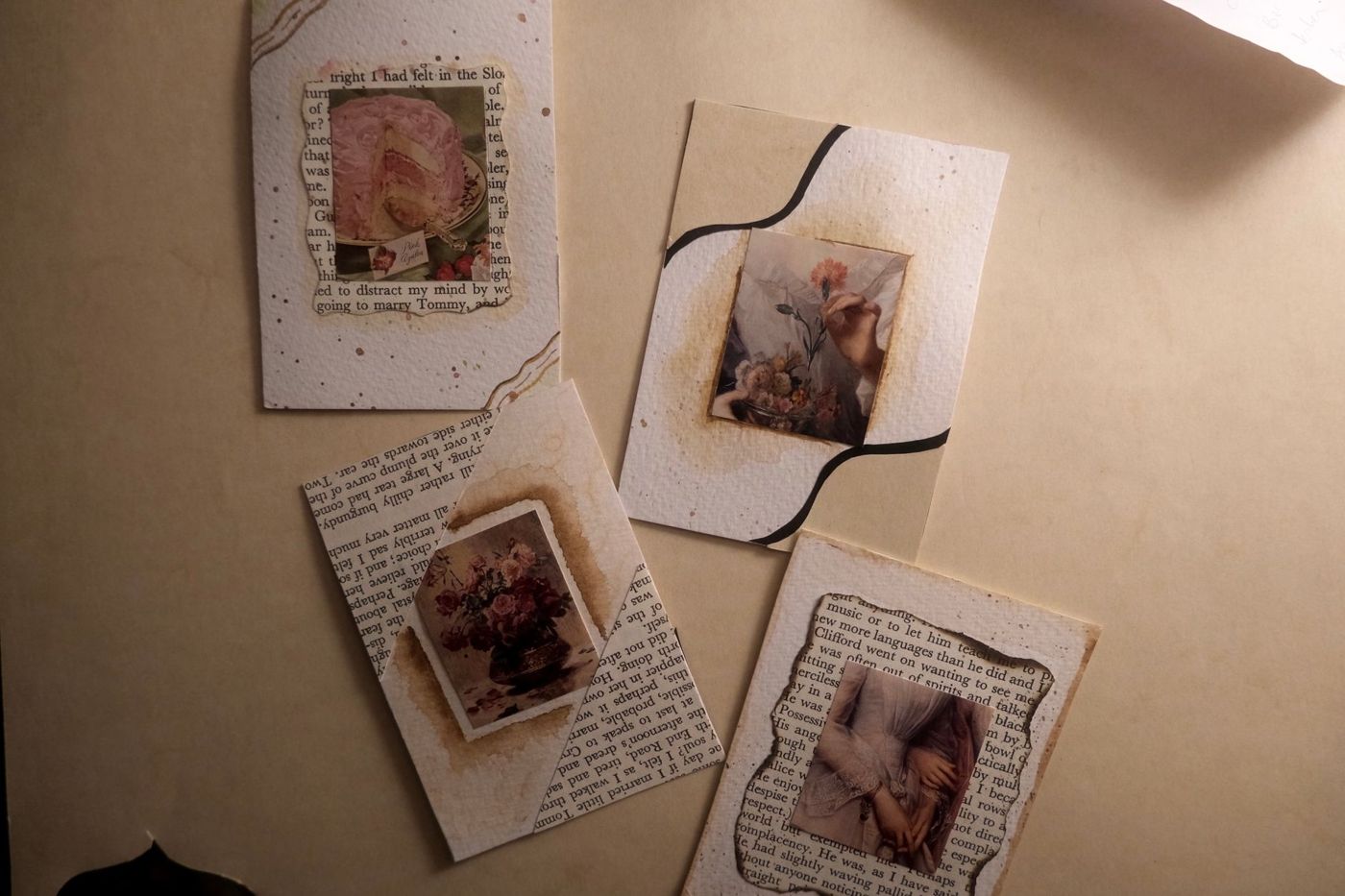
You see a digital kit full of lovely papers and labels, but you love glue, scissors and something you can touch. Then you don't have to choose. With hybrid scrapbooking, you print what starts out digital and finish it with ordinary paper. Your printer becomes an extra stack of paper that never runs out.
What is hybrid scrapbooking?
Hybrid scrapbooking is any combination of digital and paper on one page. It can work both ways. You can build a whole page on the computer, print it and then add buttons, ribbon and stitching. Or you simply work on paper and print just a few separate bits: a label, a title, a frame.
Most scrappers start with the second. You type your journaling, the story behind your photos, and print it on a piece of cardstock (sturdy, plain card). Strictly speaking, you're already working hybrid.
What it gives you, above all, is freedom. A digital kit, a set of matching papers and elements to download, can be used again and again. If you run out of a letter, you just print it again, you make a label exactly the size of the gap on your page, and you adjust a colour so it goes with your photos. At the same time, your page keeps what a fully digital page lacks: dimension, texture and your own handwriting.
What's in a digital kit
It helps to know which files you get, because you use each of them differently.
- Papers are usually JPG files. They fill a whole area, with no transparent parts.
- Elements, individual letters (alphas) and doodles are usually PNG files with a transparent background. That means you can layer them on top of each other and on a paper.
- Journal cards often come as a JPG and as a print-ready PDF, with a whole sheet of cards at once.
- Templates, ready-made page layouts, come in layers in a file such as a PSD or TIFF.
Pay attention to the resolution. Files at 300 dpi print sharply. Something made for a screen quickly turns blurry when printed.
Printing and cutting out digital papers and elements
First gather everything you need on one sheet. Put your title, a few labels and a piece of paper together in an A4 document. That way you don't waste half a sheet on one small element. If you're only printing the letters of your title, put them in a separate file instead of the whole alphabet.
A few tricks that make a difference:
- Keep the proportions locked when you resize. In most programs you do this by holding down Shift; that way you avoid stretched photos and letters.
- If you're printing a PDF, choose actual size rather than fit to page. Otherwise the printer scales everything and your measurements are no longer right.
- Place an element on the sheet twice, right next to each other. Then you have a spare if you cut wrongly, or a second layer to stick on top.
- For elements you're going to cut out, choose a thick outline. Thin lines and decorative letters tear easily.
When fussy cutting, carefully cutting along the edge of a shape, start with the smallest pieces on the inside. Cut with small snips and turn the paper rather than your scissors. If something tears anyway, stick it onto your page with a glue pen: first the piece where the white core of the paper shows, then the other piece over the top. Usually you won't see the tear any more.
If you have a cutting machine, it can do the cutting for you. Many machines can trace a PNG and then cut along the edge, and some read registration marks on your print so they cut in exactly the right place. You don't need one, though. For straight pieces, a paper trimmer, ruler and craft knife are often quicker.
Want more depth? Print a flower or label two or three times, cut out a different part each time and stick the layers together with foam tape. A little ink along the edges also takes away the flatness of a print.
Do you need Photoshop?
No. An ordinary word processor is enough to get started. You insert a JPG or PNG, make it bigger or smaller, put a few side by side and print. In many word processors you can even change the colour of an image. The only thing you miss out on is working in layers.
If you want to go a step further, there are programs that do work with layers. There are free and paid ones, such as GIMP, Photopea (which works in your browser) and Photoshop Elements. Canva is also handy for setting up a sheet full of elements. Where possible, try a trial version first, and check what the licence includes when you buy.
If you're also going to build whole pages digitally, a program with layers really helps. Each part then sits separately, so you can still move or replace it later.
Which paper to put in your printer
Ordinary white printer paper works for journaling and labels, but for anything that needs to stay put on your page, choose something sturdier. Around 200 gsm with a smooth, matte side gives rich colours and is sturdy enough to glue. Matte photo paper or presentation paper of about that weight also works well.
You can also print on patterned paper. A light, calm pattern behind a group of photos looks lovely, and even a grainy or slightly blurry photo looks better that way. Don't choose a pattern that's too busy or too dark, or your photos will disappear into it.
Printing on card without paper jams
Thick paper jams because it can't take the bend inside the printer properly. A few habits prevent most of the hassle.
- Check the manual to see how thick a paper your printer can handle. It's usually given in grams per square metre.
- Use the manual feed or the rear feed if your printer has one. There the paper travels through the machine in a straighter line.
- Feed in one sheet at a time. A little stack of card sticks together and slides in crooked.
- In the print dialogue, choose a heavier paper type, such as matte photo paper or card. The printer then adjusts its speed and the amount of ink.
- Make sure the sheet is exactly the right size, with straight, smooth edges. A frayed or curled corner is the first thing to jam.
- Let the print dry for a moment before you cut into it or glue on it, especially with lots of colour.
Want to print on a sheet your printer won't take, such as very thick card or an already stamped label? Then print on ordinary paper, cut it out and stick it onto your card. To print on a ready-made label, first print on an ordinary sheet, stick the label exactly over that text with removable adhesive and run the sheet through the printer again.
A good balance between digital and paper
There's no rule. Some scrappers do almost everything digitally and only add a button or a little bow. Others work entirely on paper and print a title now and then. Both are hybrid.
What does help: let the digital and the real touch each other a little. A printed label tucked halfway under a strip of washi tape, stitching along the edge of a print, a handwritten word on a printed card. Then you don't see a separate print laid on top, but one page. It's your own handwriting in particular that makes a printed page personal.
If you're not sure, start with one printed element per page. If you find you enjoy it, the rest will follow.
Making 12 x 12 backgrounds without a large printer
A home printer usually doesn't print larger than A4. A sheet of 30.5 x 30.5 cm (12 x 12 inches) won't fit. Still, that's no reason to buy a large printer.
- Print your background on A4, cut a 21 x 21 cm square out of it and lay it on a sheet of 30.5 x 30.5 cm patterned paper or cardstock. That leaves a border of about 4.7 cm all the way round. With a border punch or stitching along the edge, it looks as if it was meant that way.
- Divide the page into blocks. Two or four printed strips side by side, with a narrow border in between, together make a calm background. Let each strip overlap by a few millimetres or hide the seam under a paper border.
- Don't print a background, just a grid or frame that you stick onto a plain sheet. A grid like that also helps when placing your photos.
- If you still want a full 12 x 12 print, you can have the file printed by a print service or photo shop that offers that size.
Check your kit's licence
You can usually use a bought or free kit for your own pages. If you make cards to sell or share, read the terms of use that come with the kit first. They vary by designer and sometimes even by kit. Some designers also ask for a credit when you show your page.
Capturing your page
A hybrid page has dimension. So photograph it with light coming from the side; that way what you made by hand stays visible digitally too.
Questions about this topic
What is hybrid scrapbooking?
It's any combination of digital and paper on one page. You print what starts out digital, such as papers, labels, titles and journaling cards, and finish it with glue, scissors and thread.
Do you need Photoshop for digital scrapbooking?
No. An ordinary word processor is enough to insert images, make them bigger or smaller and print them. If you want to work with layers, there are free and paid programs.
How do you print on cardstock without your printer jamming?
Check the manual to see which paper weight your printer can handle, use the manual feed and feed in one sheet at a time. Choose a heavier paper type in the print dialogue. If it won't fit, print on ordinary paper and stick it onto card.
How do you make a 12x12 background without a large printer?
Print on A4 and lay it on a sheet of 30.5 x 30.5 cm patterned paper or cardstock, perhaps with a border punch or stitching. You can also divide the page into strips or have the file printed by a print service.