 · 8 min read
How to print digital pages and make a photo book
Your digital pages are finished and you want to hold them in your hands. Here's how to choose your size and resolution, and how to avoid blurry photos, dull colours and a seam across your spread.
On screen, your digital pages look lovely. But only when you hold them do they really feel like a book. Printing usually goes well, but sometimes it's disappointing: a blurry photo, dull colours or an edge that's gone missing. A few choices made in advance will prevent that.
Choose your size before you start
The most important decision isn't made when you print, but when you create your first page. The size of your file needs to match how you want to print it.
The standard in scrapbooking is a square page of 30.5 x 30.5 cm (12 x 12 inches). If you work at that size, you have the most choice: most papers and elements in digital kits (packs of backgrounds, embellishments and alphas) are made for it, and you can always print smaller later. Other common sizes are 20 x 20 cm, 25 x 25 cm and A4.
A few things to keep in mind:
- Choose one size for a whole album. Switching makes for a messy book.
- If you want a photo book made, first check which sizes the printer offers, and only then start.
- A smaller square size is affordable and easy to handle, but fills up quickly. It works best for simple pages with one to four photos.
- A4 fits any home printer, but it's portrait rather than square.
How many pixels you need
For a print you look at up close, 300 pixels per inch is the usual measure. This is called ppi or dpi; for this purpose they mean the same thing. For a 30.5 x 30.5 cm page, that comes to 3600 x 3600 pixels.
For comparison:
- A4 (21 x 29.7 cm): about 2480 x 3508 pixels
- a 10 x 15 cm photo: about 1181 x 1772 pixels
- a double page of 61 x 30.5 cm: 7200 x 3600 pixels
Set this when you create a new file, before you add any photos. Enlarging afterwards doesn't add detail.
What really matters is the number of pixels, not the dpi figure. A file labelled 72 dpi can print perfectly well if it has enough pixels. And the other way round, a small file doesn't get any sharper by changing it to 300 dpi. So look at the dimensions in pixels: on Windows via Properties, on a Mac via Get Info.
Always keep the original file, too. Photos you've sent or received through a messaging app have often been shrunk a lot. The same goes for images from websites and screenshots: they're made for a screen, not for paper. It's better to send photos by email at full size or through a service for large files.
The 'low resolution' warning
Software and photo book services warn you when a photo or element has too few pixels for the space you've put it in. You'll often see a yellow or red triangle, or a message saying you've zoomed in too far. The program works out how large you've made the image and sees that there are too few pixels per centimetre left.
Take that warning seriously. You won't see the difference on screen, because a screen shows everything small and crisp. On paper the image is stretched and you'll see little blocks or fuzzy edges.
What you can do:
- Find the original file, at full size.
- Make the photo smaller on your page. At a smaller size, the resolution will be enough.
- After moving or renaming files, check that your program can still find the photo. If the link is lost, it sometimes uses a small preview instead, which leads to a grainy print.
- A program that enlarges images with artificial intelligence can rescue a photo, but faces sometimes come out unnaturally smooth. Only use it when there's no other way.
Small text is especially sensitive. If you make a reduced version to share online, small text in it quickly becomes unreadable. That's not a problem, as long as you use the full file for printing. So give reduced versions a different name.
Printing at home, individual prints or a photo book
There are three ways to get your pages onto paper. Each has its own advantages.
Having a photo book made suits a finished story: a holiday, a year or a family history. You put your pages in the right order, send them to a photo book service and get a bound book back. It looks neat, but it's also fixed: you can't add or move anything later.
Individual prints in an album with page protectors give you freedom. You can add, swap and rearrange pages for as long as you like, with no deadline. This suits an album that grows over time, such as a year with your children. Look for page protectors that fit your size, and choose a safe plastic such as polypropylene.
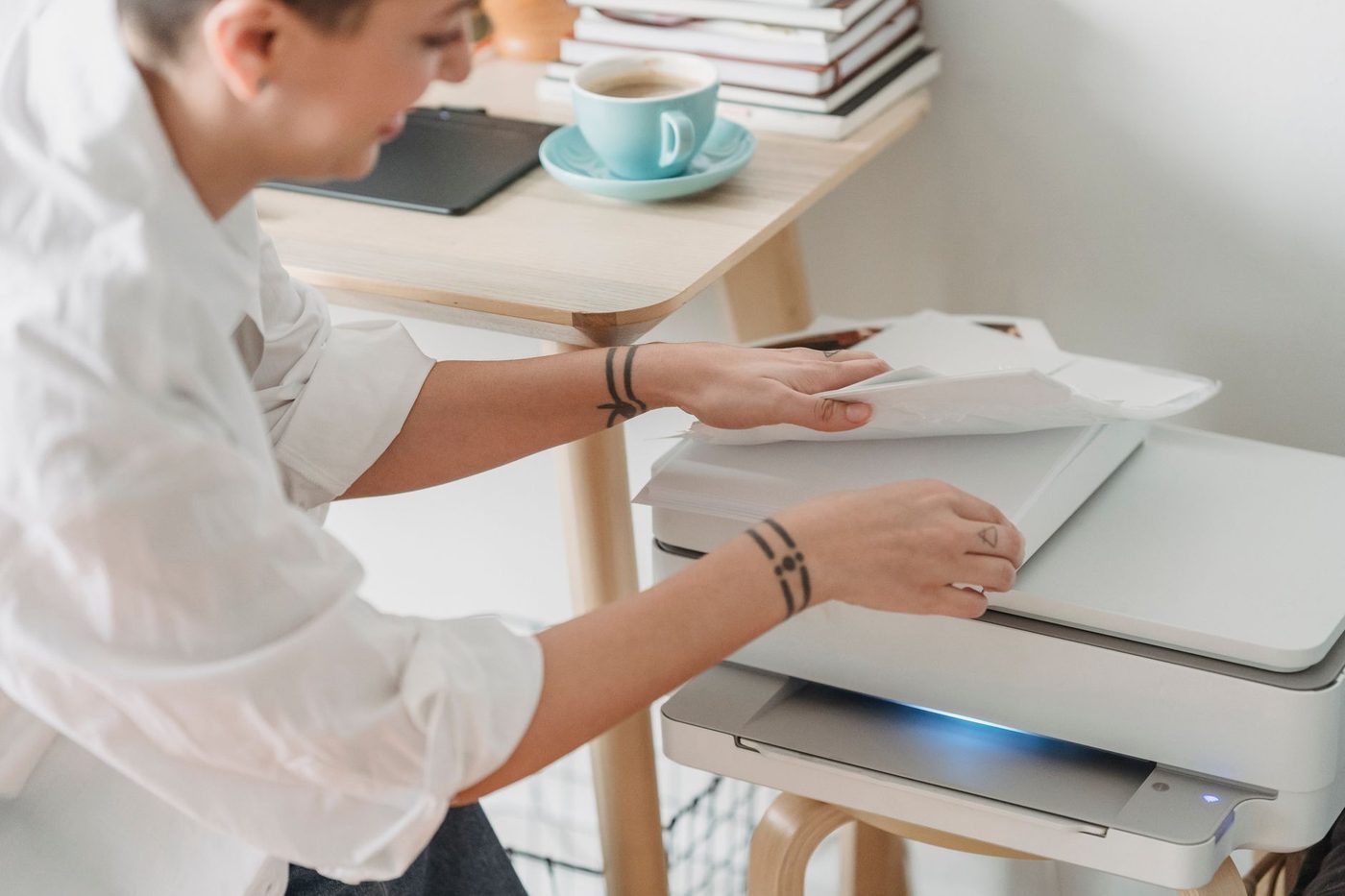
Printing at home is ideal for smaller sizes and for hybrid work: you print papers and elements and then carry on with scissors and glue. For photos and backgrounds, use photo paper or sturdy paper, and in the print dialogue choose the right paper type and the highest quality. Many home printers can't print to the edge, so allow for a white margin of a few millimetres.
If you're unsure, start small: one page, one print, one page protector.
Printing a 30 x 30 page when you only have A4
A 30.5 cm page won't fit on an A4 sheet that's 21 cm wide. You have a few options:
- Scale the page down. You'll get a square of about 20 x 20 cm. Everything gets smaller, but the proportions stay right. That works for a smaller album or a journal.
- Have the pages printed elsewhere. Photo services and print shops can print larger than your home printer. Ask beforehand which sizes they offer and how they'd like to receive your file.
- Split the page across two sheets. You can, but plan in advance where the seam will go, for example in a quiet part of the background.
- Work in A4 from now on. Many digital papers also come in an A4 version.
Pay attention to the scale when printing. Choose 'actual size' or '100 per cent', not 'fit to page'. Otherwise the printer scales however it sees fit and your measurements will be off. With 'fill', the printer may actually cut off the edges of your square design. Always check the print preview, and check the margins and orientation.
Why colours look different on paper
A screen gives off its own light and mixes colours from red, green and blue (RGB). A printer uses ink on paper, usually cyan, magenta, yellow and black (CMYK). Paper doesn't give off light, it reflects it. That's why prints are often darker and less vivid than what you saw on screen. Bright, saturated colours are particularly tricky on paper.
Your screen itself plays a part too. If the brightness is high, your pages look lighter than they are. What helps:
- Don't set your screen to maximum brightness when you're judging colours.
- Make a test print first, ideally of a page with both light colours and small details.
- If your printer keeps coming out too dark, raise the brightness and saturation in your design just a little.
- Look at the test print in the light you'll be reading the album in.
With a photo book, you can often order a small booklet or a single print first. For a big project in particular, that's well worth it.
A double page without a seam
Have you designed a spread, two pages that run across the book as one? In an ordinary bound photo book, part of the middle disappears into the spine. A face or a title right in the centre will then be lost.
The solution is a photo book with layflat binding. The book opens completely flat and the print runs across both pages without a break. It usually costs a bit more, but for spreads it's the difference between lovely and not quite.
Here's how to prepare it:
- Design the spread as one file two pages wide, or as two pages that line up exactly. Check how your printer would like to receive it.
- Keep important things, such as faces and text, out of the middle and far enough from the edges.
- Let your background extend past the trim line. Printers trim a tiny bit off the edge, so a design that stops exactly at the edge can end up with a thin white border.
With individual prints in an album, you'll always get a seam between the two sheets. Butt them tightly together and choose a design where a narrow seam won't get in the way.
Before you hit order
Run through these points once more:
- Does the size match what the print service or your printer can handle?
- Are your pages 300 ppi at actual size, and are there no more low-resolution warnings?
- Have you got a high-quality JPG or a PDF ready? A PDF can hold multiple pages and keeps the quality well if you export it at high quality.
- Is there nothing important too close to the edge or in the middle of a spread?
- Have you looked at a test print?
Afterwards, keep your working files and the print versions in two places. That way you can always have a new copy made later.
Questions about this topic
What resolution does a digital scrapbook page need for printing?
About 300 pixels per inch. For a 30.5 x 30.5 cm page, that comes to 3600 x 3600 pixels, and enlarging afterwards doesn't add detail.
How do I print a 12x12 page on an A4 printer?
Scale the page down to about 20 x 20 cm, have it printed elsewhere at a photo service or print shop, or split it across two sheets. When printing, choose 'actual size' or '100 per cent', not 'fit to page'.
Why do printed colours look different from the screen?
A screen gives off its own light and mixes red, green and blue, while a printer uses ink on paper. So prints are often darker and less vivid, especially with bright colours. A test print shows you this in advance.
How do I get a double page without a seam in a photo book?
Choose a photo book with layflat binding, where the print runs across both pages without a break. Keep faces and text out of the middle and let the background extend past the trim line.