 · 8 min read
How to organise and back up your digital kits, pages and photos
A folder structure you'll stick with, a backup that runs by itself and a plan for later: that way you'll never lose a kit, photo or page again.
If you scrap digitally, things pile up fast. A few kits a month, thousands of photos a year, and every page you make adds to it. As long as everything works, you hardly notice. Until you're looking for a kit you know you bought, or your drive won't start one morning.
The good news: with one simple, fixed place for everything and a backup that runs by itself, you've removed the biggest risk. You don't need to be a computer expert.
Start with your Downloads folder
Most of the mess starts the moment you download something. The zip stays in Downloads, you half unzip it, and three months later you no longer know what's already on your drive.
So turn every new kit into a short ritual:
- Unzip it straight away.
- Check that all the parts are there. Some kits come in several zips, and you often only spot a failed download when an element is missing. Many shops let you request a download link again, but not endlessly.
- Move the unzipped folder to its fixed place right away.
- Delete the zip and empty the bin too, or you'll have your files twice.
This takes a few minutes per kit. Skip it, and later it becomes an afternoon of sorting that nobody feels like doing.
A folder structure you'll stick with
The best structure is the most boring one: so few levels that you never have to think about where something goes. A setup that lasts for years for many scrappers:
- Kits, with a folder for each designer and a folder for each kit inside that
- Photos, by year, with folders like 2026-07-14 Strand Texel
- Pages, by year, with your finished layouts
- To print, for pages that still need to go to the printer or the photo printing service
Always start dates with the year, then the month and the day. That way your computer sorts everything into the right order by itself. Avoid characters like / or : in file names, as they cause problems on some systems.
Some scrappers also keep a Still to scrap folder. As soon as a photo has found a place on a page, it moves to the regular photo folder. That way you can see at a glance what's still waiting.
Clear out what you don't need as you unzip. Every kit includes a file with the designer's terms of use; one copy per designer is enough. Promo images and preview files can go too. With templates, keep the editable file, usually a PSD or TIFF.
To tag your kits or not
Tagging, meaning adding labels such as colour, theme or season to files, sounds like the answer to everything. In practice, many scrappers give up, because keeping it up takes more time than it saves. A few things to know before you start.
Tag at kit level, not every single element. A kit gets a few labels at most: Christmas, blue, baby. That's manageable. Labelling thousands of individual buttons and leaves rarely is.
Pay attention to where your tags are stored. The coloured tags in the Finder on a Mac aren't carried over by every backup service or every other system. After a restore, you may have to add them again. Programs like Adobe Bridge or Lightroom store keywords in their own way; check beforehand whether they'll move with you to another computer.
If you'd rather not tag, a good folder name goes a long way. A folder like Designer name - Summer fair - red yellow is easy to find with the ordinary search function. And if you're wondering whether you've already bought a kit: search your own drive first, before you buy it again.
Keep three copies, in two kinds of places
However often it's said: one copy is no copy. Drives break, laptops get stolen, and a cloud account can become inaccessible too. Anyone who has worked digitally for a while knows never to rely on one place.
The rule of thumb is called 3-2-1:
- three copies of everything that matters to you
- on two kinds of storage, for example your computer and an external drive
- with one of them outside your home, in the cloud or with family
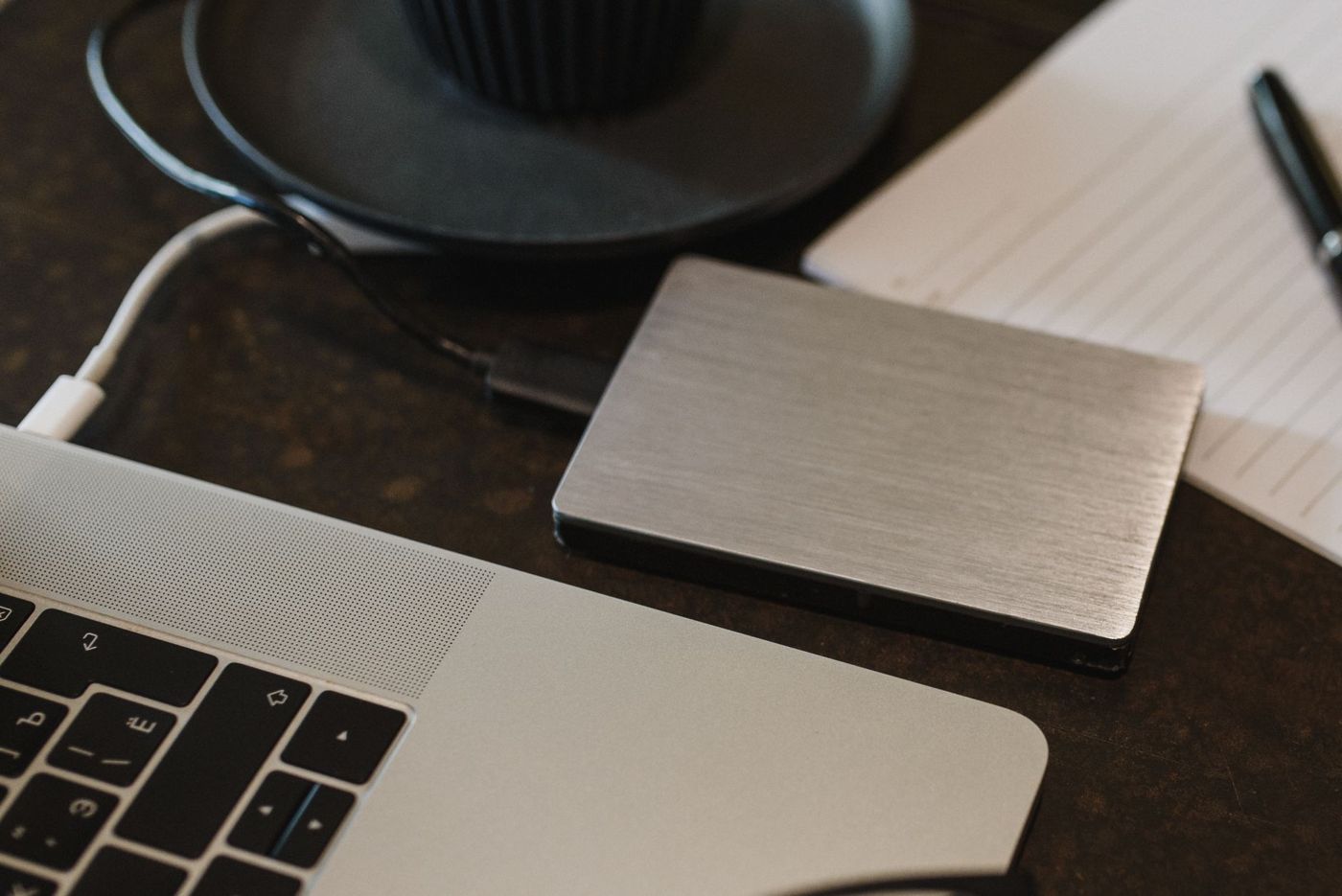
The external drive is the workhorse. It's cheap per gigabyte and works without the internet. Choose one at least twice the size of the drive in your computer; for many scrappers 1 to 2 terabytes is a good start, although a kit collection grows faster than you think.
As for drives:
- A classic hard drive (HDD) is cheap and good for storing a lot, but doesn't cope well with drops and knocks.
- An SSD is faster and more shock-resistant, but more expensive. Handy as a working drive or to take to a scrapping weekend.
- A USB stick is for transferring, not for storing.
- If you take your drive on a trip, take a copy rather than your only one.
The cloud is your copy away from home. It protects you against fire, theft and a dropped drive. Roughly, there are two kinds: services that sync your files between devices, such as iCloud, OneDrive or Google Drive, and true backup services that save everything on your computer in the background. Mind the difference. With syncing, a file you delete by accident also disappears from the cloud, although it often stays in the service's bin for a while. A backup service usually keeps older versions too.
If you can't or don't want to use the cloud, leave a second external drive with family and swap it over now and then.
How often should you back up
The honest answer: more often than you do now. The biggest pitfall isn't the technology but forgetting. If you copy by hand, you'll do it faithfully at first and stop after a few months.
So let it happen automatically as much as possible. On a Mac, Time Machine can keep putting a copy on an external drive, Windows has a similar feature, and a cloud backup service usually runs continuously.
If you do it by hand anyway, tie it to a fixed moment: after every new batch of kits, or on the first of the month. Put it in your calendar.
And a few times a year:
- Switch on drives that sit in the cupboard. A drive left unused for years can refuse to work or lose data. Switching it on once a year is the minimum.
- Try restoring a random file from your backup. A backup you've never tested is a gamble.
- Check how old your drives are. Count on a few years, not a lifetime. Replace a drive after five years or so, or sooner if it makes strange noises or slows down.
What if your drive breaks
Stop using the drive straight away. Every attempt to get it working again, and especially installing recovery software on that same drive, can reduce the chance of saving your files.
If you have a backup, restore it to a new drive and you're done. This is exactly the moment you made it for.
If you don't, there are still a few options:
- With an external drive, the problem is sometimes in the enclosure or the connection, not the drive itself. Someone who knows about computers can put it in a different enclosure and try it on another computer.
- If the drive clicks or beeps, switch it off and have it looked at by a specialist data recovery company. That isn't cheap, and there are no guarantees.
- At many shops, you can download kits you've bought again through your order history. Photos are sometimes still on your phone, in a cloud photo service or with someone you sent them to.
What almost never comes back: your own pages. That's why they're the first thing you'll want to keep a second copy of, even before your kits.
What happens to your files after you die
It's not a nice subject, but it's part of it. Your family will find a paper album on the shelf without any trouble. A folder on a password-protected external drive, not so much.
A few things that help:
- Write down where everything is: which drives, which cloud, which folders. Keep that note with your other important papers.
- Make sure someone can get to your passwords. A password manager often has emergency access for a trusted person. Apple and Google have settings that let you choose in advance someone who may access your account after you die.
- Say who you'd like to have what. Some scrappers put in their will who gets their albums.
- Print your favourite pages. A printed book survives a forgotten password, a broken drive and a cancelled subscription.
Kits are a different story. You bought them for your own use, and many designers' terms don't allow you to pass them on to others. Your pages, though, are yours, and those are what matter to your family.
Start small
You don't have to sort everything out in one weekend. Start with the backup, because that's where the real risk is. Then put your pages into folders by year, and from today, unzip new kits properly straight away. The old pile will get its turn on some rainy afternoon.
Questions about this topic
How do I organise digital scrapbook kits into folders?
Keep it simple: a Kits folder with a subfolder for each designer and each kit, plus folders by year for photos and finished pages. Unzip a kit straight away, check that everything is there and move it to its fixed place.
How often should I back up my digital photos?
Often enough that you don't forget. It's better to let it happen automatically, for example with Time Machine on a Mac or a cloud backup service. If you do it by hand, tie it to a fixed moment, such as the first of the month.
What is the 3-2-1 backup rule?
You keep three copies of what matters, on two kinds of storage, such as your computer and an external drive, with one copy outside your home, in the cloud or with family.
What should I do if my external hard drive stops working?
Stop using the drive and restore your data from your backup if you have one. If you don't, someone who knows about computers can try the drive in a different enclosure, or you can have it looked at by a specialist company.